











Track user behavior on product pages and checkout flows with session recordings, heatmaps, and funnels.
Hotjar provides behavior analytics for Webflow e-commerce sites through session recordings, heatmaps, and conversion funnels. This guide covers the technical integration concepts, configuration patterns, and architectural considerations developers need to understand when implementing Hotjar for e-commerce conversion optimization.
What this integration enables
Hotjar captures user behavior data on your Webflow e-commerce site, including HTML content and DOM changes, clicks, taps, scrolls, mouse movements, and typing patterns. This data helps identify friction points in product pages and cart interactions.
At a high level, this integration gives you access to the following capabilities:
- Session recording: Record user interactions across product and cart pages, capturing DOM changes, clicks, scrolls, and mouse movements with sessions automatically terminating after 30 minutes of inactivity
- Heatmap analysis: Generate three types of heatmaps: click maps showing user interactions, move maps tracking mouse patterns (desktop-only), and scroll maps displaying scroll-depth visualization for analyzing user behavior on e-commerce pages
- Conversion funnel tracking: Build up to 10-step conversion funnels combining page views, clicks, and custom events to track paths from product view through purchase, with conversion rate metrics at each step
- Custom event tracking: Implement Events API with syntax
hj('event', 'action_name')to track e-commerce interactions (add-to-cart, checkout-start, purchase-complete) with support for filtering recordings and heatmaps - User segmentation: Use the Identify API with syntax
hj('identify', userId, {attributes})to segment behavior data by customer type, purchase history, and custom attributes (advanced attributes require higher-tier plans) - Qualitative feedback: Deploy six survey types: popover, button, bubble, embedded, full screen, and link surveys with URL-based, event-based, and user attribute targeting to collect qualitative data at strategic conversion points
Architecture overview
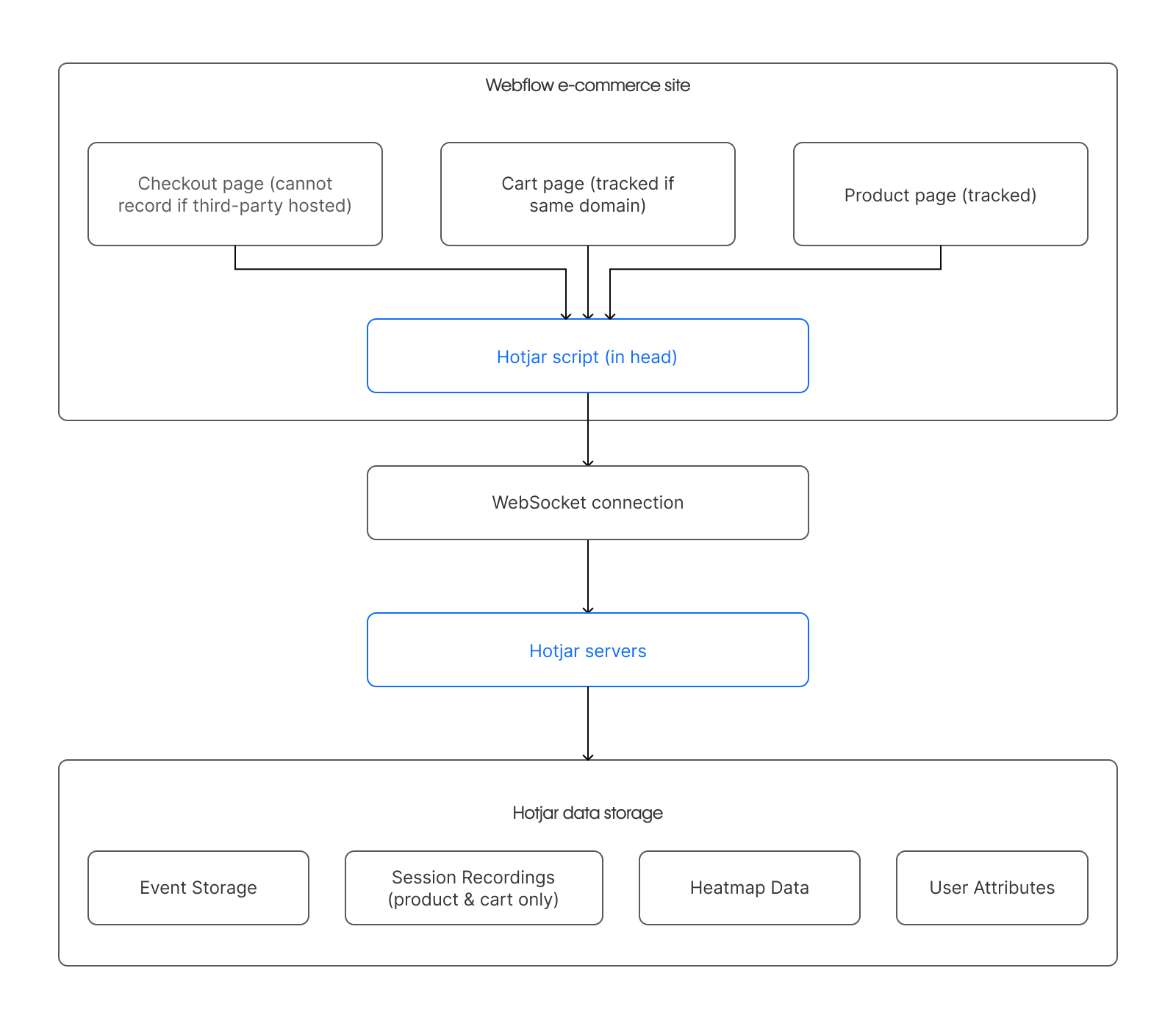
The Hotjar tracking script executes in the user's browser and establishes a WebSocket connection directly from the browser to Hotjar servers (not from Webflow's servers to Hotjar). This client-side architecture captures user interactions, including DOM changes, clicks, scrolls, and mouse movements.
Critical architectural limitation: Hotjar cannot record sessions on third-party hosted checkout pages or iframe-embedded payment processors due to security restrictions. If your checkout flows use third-party payment processors, your recording funnel will have a gap between cart and confirmation pages that cannot be overcome through configuration.
Prerequisites
Before implementing this integration, ensure you have access to the following:
- A Hotjar account with your unique Site ID (found in Hotjar dashboard > Sites & Organizations > Install tracking code)
- Webflow site with e-commerce enabled and publishing access
- Access to Webflow Site Settings for custom code injection
- Understanding of your checkout architecture (same-domain vs. third-party hosted)
For GDPR compliance requirements, you also need a consent management solution. Webflow supports several Consent Management Platforms (CMPs), including Cookiebot, CookieScript, and Consent Pro by Finsweet.
Step 1: Install the Hotjar tracking code on Webflow
The Hotjar tracking code must be placed in the <head> section of your Webflow site via Site Settings > Custom Code > Head Code. Placing it elsewhere prevents proper initialization.
At a high level, you'll:
- Copy the tracking code from your Hotjar Sites & Organizations page
- Add it to Webflow via Site Settings > Custom Code > Head Code
- Publish the site to activate tracking
The current Hotjar tracking code (version 6) follows this structure:
<script>
    (function(h,o,t,j,a,r){
        h.hj=h.hj||function(){(h.hj.q=h.hj.q||[]).push(arguments)};
        h._hjSettings={hjid:YOUR_HOTJAR_ID,hjsv:6};
        a=o.getElementsByTagName('head')[0];
        r=o.createElement('script');r.async=1;
        r.src=t+h._hjSettings.hjid+j+h._hjSettings.hjsv;
        a.appendChild(r);
    })(window,document,'https://static.hotjar.com/c/hotjar-','.js?sv=');
</script>
Replace YOUR_HOTJAR_ID with your actual Site ID. Install the tracking code only once per page to avoid conflicts. For page-specific tracking, use a Code Embed element instead of site-wide custom code.
Step 2: Implement GDPR-compliant consent management
Hotjar does not handle user consent collection automatically. As the Data Controller, you must implement a consent mechanism before conditionally loading the tracking script.
Important: Webflow's built-in consent management API (wf.getUserTrackingChoice()) only controls Webflow's own analytics products (Analyze and Optimize). It does not provide GDPR compliance for third-party scripts like Hotjar. You must use a dedicated CMP to gate Hotjar loading.
At a high level, you'll:
- Implement a consent banner using a supported CMP such as Cookiebot or CookieScript
- Configure Google Tag Manager to conditionally load Hotjar based on consent categories
- Set the CMP to trigger Hotjar only after analytics/marketing consent is granted
Google Tag Manager consent-based implementation:
// In GTM, create a Custom HTML tag for Hotjar with a consent-based trigger
// Trigger: Fire on "Consent Initialization - All Pages" when analytics consent = true

<script>
(function(h,o,t,j,a,r){
    h.hj=h.hj||function(){(h.hj.q=h.hj.q||[]).push(arguments)};
    h._hjSettings={hjid:YOUR_HOTJAR_ID,hjsv:6};
    a=o.getElementsByTagName('head')[0];
    r=o.createElement('script');r.async=1;
    r.src=t+h._hjSettings.hjid+j+h._hjSettings.hjsv;
    a.appendChild(r);
})(window,document,'https://static.hotjar.com/c/hotjar-','.js?sv=');
</script>
Configure your CMP to set a GTM trigger variable when analytics consent is granted. The Hotjar tag should only fire when this consent condition is met.
You must also update your privacy policy to mention Hotjar usage, document the three Hotjar cookies in your cookie policy, and sign Hotjar's Data Processing Agreement for GDPR Article 28 compliance.
Step 3: Configure custom event tracking for e-commerce
Hotjar does not provide predefined e-commerce event names. You must implement custom JavaScript using the Events API to track cart interactions and checkout steps. Consistent naming conventions matter for filtering and analysis.
At a high level, you'll:
- Define events for key e-commerce actions using
hj('event', 'action_name') - Add event calls after specific user interactions via custom code embeds
- Use events to filter recordings, trigger heatmaps, and build funnels
Webflow e-commerce event implementation pattern:
Since Webflow does not expose native e-commerce events, you must implement event tracking manually by attaching JavaScript listeners to e-commerce interactions. Note that Hotjar limits tracking to 50 unique events per session. Here's how Webflow cart data and user interactions map to Hotjar tracking:
// Example: Webflow cart structure (conceptual representation)
// Webflow stores cart data in browser but doesn't expose native events
// You must manually track interactions by attaching event listeners

// Track add-to-cart button clicks
document.querySelector('.add-to-cart-button').addEventListener('click', function() {
  // Trigger Hotjar event
  hj('event', 'add_to_cart');

  // Optionally capture cart context using Identify API
  // Extract cart total from Webflow cart (implementation depends on your setup)
  const cartTotal = getWebflowCartTotal(); // Your custom function
  const productCategory = this.dataset.category; // From button data attribute

  hj('identify', userId, {
    'cart_value': cartTotal,        // Number without quotes
    'last_product_category': productCategory  // String in quotes
  });
});

// Other e-commerce event tracking examples
// Product page view
hj('event', 'product_viewed');

// Checkout initiated
hj('event', 'checkout_started');

// Purchase completed (on confirmation page)
hj('event', 'purchase_completed');
Data Mapping Example:
// Webflow cart data → Hotjar user attributes
// If you access Webflow cart via JavaScript:

// Conceptual Webflow cart object:
{
  items: [{
    id: 'prod_123',
    name: 'Wireless Headphones',
    price: 79.99,
    category: 'electronics'
  }],
  subtotal: 79.99,
  itemCount: 1
}

// Maps to Hotjar Identify API:
hj('identify', 'user_456', {
  'cart_value': 79.99,                    // Number (no quotes)
  'cart_item_count': 1,                   // Number (no quotes)
  'last_product_category': 'electronics', // String (with quotes)
  'last_product_name': 'Wireless Headphones' // String (with quotes)
});
Events must be called after the Hotjar tracking code loads. For technical constraints and implementation details, see the Events API Reference.
Step 4: Set up user identification for segmentation
The Identify API passes user attributes to Hotjar to identify individual users and enable advanced segmentation.
At a high level, you'll:
- Call
hj('identify', userId, {attributes})after the tracking code loads - Define attributes relevant to e-commerce analysis (customer type, cart value, purchase history)
- Use attributes to filter behavior data in the Hotjar dashboard
<script>
var userId = your_user_id || null;

window.hj('identify', userId, {
  'user_type': 'returning',
  'lifetime_value': 1500,
  'cart_value': 150,
  'signup_date': '2024-01-15T00:00:00Z',
  'product_category': 'electronics'
});
</script>
Supported data types: dates in ISO-8601 format, strings in quotes, numbers without quotes, and null for absent data. The Identify API must execute only after the Hotjar tracking code initializes.
Step 5: Build e-commerce conversion funnels
Hotjar Funnels visualize conversion paths with up to 10 steps, providing conversion rates at each step and direct links to session recordings.
At a high level, you'll:
- Create funnels with up to 10 steps using page views, clicks, or custom events
- Connect session recordings to each funnel step for contextual analysis
- Apply user attribute filters for cohort-specific funnel analysis
See the How to Use Funnels documentation for configuration details.
Step 6: Interpret heatmap data for e-commerce pages
Hotjar generates three primary heatmap types that reveal different aspects of user behavior on product and cart pages.
At a high level, you'll:
- Use click maps to identify CTA engagement and rage-click patterns indicating frustration
- Use scroll maps to verify critical conversion elements remain visible above the average fold position
- Use move maps (desktop only) to track mouse movement and attention patterns
- Apply device and user segment filters for comparative analysis
- Cross-reference heatmap data with session recordings for behavioral context
See the Types of Heatmaps documentation for detailed guidance on each heatmap type.
Step 7: Configure PII suppression for checkout pages
Hotjar provides automatic suppression of keystroke data on input fields, automatic masking of numbers 9 digits or longer, and manual CSS/attribute-based masking to protect customer data.
At a high level, you'll:
- Rely on automatic suppression for keystrokes and 9+ digit numbers
- Apply
data-hj-suppressattributes to customer names, addresses, and order details (note: the legacydata-hj-maskedattribute also works butdata-hj-suppressis current) - Enable email suppression in Site Settings if needed
<div data-hj-suppress>
  <p>Billing Address</p>
  <p>Order Details</p>
</div>
Data suppression occurs client-side before data leaves the browser, making retroactive suppression impossible. See the suppression documentation for complete implementation details.
Step 8: Handle Webflow e-commerce architecture constraints
Webflow's architecture presents specific challenges for behavior tracking implementations.
At a high level, you'll need to address:
- Shadow DOM isolation in certain Webflow components that can block standard DOM-based tracking selectors
- Client-side state changes that occur without page reloads
- Undocumented checkout flow architecture that requires testing
- Custom code constraints and ad-blocker interference
Shadow DOM isolation: Some Webflow component elements use Shadow DOM containers that can prevent standard tracking selectors from accessing elements inside. Test your specific implementation to identify affected components.
Dynamic content rendering: Cart updates and product variant selections occur client-side without page reloads. Configure tracking to detect client-side state changes through mutation observers or polling mechanisms.
Step 9: Verify the integration
After installation, verify that Hotjar is capturing data correctly using browser Developer Tools to filter the Network tab by "hotjar," or enable Hotjar Debug Mode for detailed execution logging.
At a high level, you'll:
- Check the Hotjar dashboard verification tool
- Confirm WebSocket connection establishes and DOM changes are captured
- Test custom events fire on expected user interactions
- Verify PII suppression masks sensitive data in test recordings
Debug Mode Output Examples:
Enable Debug Mode using localStorage (persists across page loads):
localStorage.setItem('hjDebug', 'true');Or use the URL parameter for single-session debugging:
<https://yoursite.com?hjDebug=true>Successful initialization output:
[Hotjar] Tracking code initialized
[Hotjar] Session ID: abc123
[Hotjar] WebSocket connection established
[Hotjar] Recording started
Failure indicators:
[Hotjar] Error: Site ID not found
[Hotjar] WebSocket connection failed: CSP blocking
Step 10: Troubleshoot common issues
The five primary causes of tracking failures include incorrect code placement, CSP restrictions blocking the script, duplicate tracking code installations, SPA state change detection failures, and syntax corruption when copying the tracking code.
See the Troubleshooting FAQs for additional guidance.
Step 11: Integrate with Google Tag Manager and GA4
Hotjar integrates with Google Tag Manager for deployment and can share data with GA4 through custom dimensions. This enables filtering Hotjar behavior data using GA4 event context.
At a high level, you'll:
- Deploy Hotjar via Google Tag Manager with consent-based triggers
- Create a custom user dimension
hjuidin GA4 with user scope - Configure GTM to pass the Hotjar user ID to GA4
- Filter recordings and heatmaps using the
hjuiddimension in your analysis
Setting up the hjuid custom dimension:
- In GA4, create a custom user-scoped dimension named
hjuid - In GTM, create a variable that captures the Hotjar user ID from
window.hj.qor cookies - Pass this value to GA4 with your pageview and event tags
- Use the dimension in GA4 reports to correlate Hotjar session data
This integration allows you to segment Hotjar recordings by GA4-tracked user behaviors and attributes.
Other supported integrations include Segment, Mixpanel, Optimizely, and Zapier. See the complete integrations list for configuration details and current availability.
Advanced considerations
Environment considerations:
- Test tracking on staging sites before production deployment using Hotjar Debug Mode
- Consider sampling rates for high-traffic production sites to manage quotas
Scaling considerations:
- Session recording quotas vary by plan tier
- API rate limiting applies at 3,000 requests per minute
Customization concepts:
- Update user attributes dynamically as customer states change
- Configure event-based survey triggers for strategic feedback collection
- Build complex funnels combining page views, clicks, and custom events
Summary
Implementing Hotjar on Webflow e-commerce sites requires understanding both platform architectures. The integration provides valuable behavior analytics for product pages and cart interactions, with automatic keystroke masking and payment information suppression.
Key implementation considerations:
- Install tracking code in
<head>via Site Settings or GTM - Implement consent-based loading using a dedicated CMP (not Webflow's built-in consent API)
- Use Events API for cart and checkout action tracking
- Apply
data-hj-suppressto all PII elements - Verify installation with Debug Mode before production deployment
For implementation details, refer to the Hotjar tracking code documentation, Webflow custom code guide, and Hotjar Events API reference.





































